What you need
- A link or text for the code. Shorter is better, for reasons explained below.
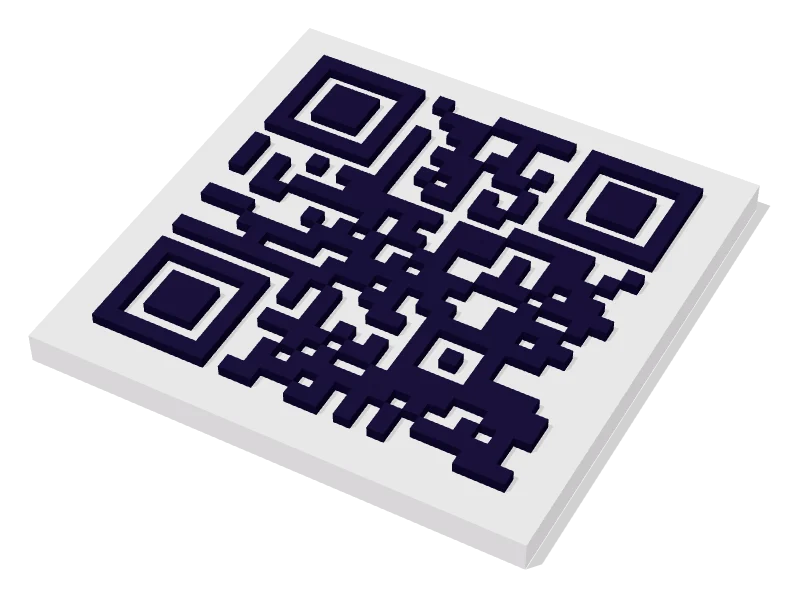
- A 3D model of the code. The free 3D QR code generator makes one in your browser and exports an STL file.
- Any FDM printer with a 0.4 mm nozzle, the most common size.
- Two filaments with strong contrast, ideally a light base and a dark code. White and black is the safest pair.
- A slicer: Cura, PrusaSlicer, Bambu Studio, OrcaSlicer or similar.
How a printed QR code works
The model is a flat plate with the dark squares of the QR code raised on top. A phone camera doesn’t see height. It sees colour and shadow. So the code scans because the raised squares are a different colour from the base, or, with a single colour, because side lighting casts shadows around them. Colour contrast is far more reliable than shadows, which is why two colours is the recommended way to print a QR code.
The squares that make up the code are called modules. Everything about a successful print comes down to making each module big enough for your printer to draw cleanly and for a phone to resolve from where people will stand.
Step 1: Keep the content short
A QR code grows a finer grid as you add characters. A short link such as https://example.com/menu usually fits in a 25 × 25 or 29 × 29 grid. A long address full of tracking parameters can jump to 41 × 41 or more, which halves the size of each square at the same width.
For printing this matters even more than on paper, because every square has walls that your nozzle has to trace. Fewer, bigger squares print faster, look crisper and scan better. If your link is long, put a short page on your own site and point the code at that instead.
Step 2: Choose the size
Aim for modules at least 1 mm wide, and 1.5 mm or more if you can. With a 0.4 mm nozzle, a 1 mm square is only about two and a half line widths, so anything smaller starts to blur at the corners.
You can work out the module size yourself: divide the width of the plate by the number of modules across, including the margin. The generator uses a margin of two modules on each side by default. A 29 × 29 code on a 50 mm plate therefore has 33 modules across, which gives squares about 1.5 mm wide. That is a comfortable size for a keychain or a small sign.
As a starting point:
- Keychain or tag: 40–50 mm with a very short link.
- Coaster or table sign: 70–100 mm.
- Wall or window sign: 120 mm or more, scaled to the distance people will scan from. A code scans from roughly ten times its width.
The generator warns you if the squares come out smaller than 1 mm at the width you picked.
Step 3: Pick the right filament
- PLA is the easiest choice for indoor signs and keychains. It prints cleanly and comes in high-contrast colours.
- Matte PLA scans better than glossy PLA because it doesn’t reflect ceiling lights back into the camera.
- Avoid silk, metallic and glitter filaments for the code layer. They look great, but they reflect light unevenly and make the code harder to read.
- Avoid translucent filament for the base. Light passing through it lowers the contrast.
- PETG copes with more heat than PLA, which matters for coasters under hot mugs and for signs in a sunny window. PLA can start to soften at around 55–60 °C.
- ASA is the usual choice for signs that live outdoors, because it resists UV and weather better than PLA or PETG.
Keep the code layer dark and the base light. Inverted codes, with light squares on a dark base, fail on some phones.
Step 4: Set the base and code height
- Base thickness: 2 mm is sturdy enough for most uses. Use 3 mm for coasters and signs that will be handled a lot.
- Code height: 0.8–1.2 mm. Taller squares don’t scan better. They cast longer shadows, which can merge neighbouring squares when the phone is at an angle.
- Keychain loop: tick the option in the generator if you want a ring on the top edge. Keep it on the side away from the code’s corner squares.
Before you download, use the Top view button. It shows exactly what a phone sees from above, and the badge confirms the top view decodes.
Step 5: Print in two colours
There are three common ways to get two colours, depending on your printer.
Multi-material printers
If you have an AMS, MMU, CFS or a tool-changer, download the 2-color STLs. Import both files together and, when the slicer asks, load them as a single object with multiple parts. Then assign the light filament to the base and the dark filament to the code. Add a small prime tower if your slicer doesn’t do it automatically, so leftover colour doesn’t smear onto the first code layer.
A filament change on a single-colour printer
Because the code sits entirely on top of the base, you only need one colour change, at the first layer of the raised code. Use the regular STL and find the layer in the preview:
- PrusaSlicer: in the preview, drag the vertical layer slider to the first layer where the code appears, then click the plus icon next to it. This inserts a colour change.
- Bambu Studio and OrcaSlicer: drag the layer slider to the same layer, right-click the plus icon and choose to add a colour change or a pause.
- Cura: open Extensions → Post Processing → Modify G-Code, add the Filament Change script and enter the layer number.
To find the layer number, divide the base thickness by your layer height. A 2 mm base at 0.2 mm layers is 10 layers, so the change goes at the start of layer 11. Always check the preview, because some slicers use a different first layer height.
One colour only
A single-colour print can scan in strong light coming from the side, but it is unreliable. If you have no second colour, you can paint the tops of the squares with a paint pen or a small roller after printing. It is slow but it works.
Step 6: Slicer settings that help
- Layer height: 0.2 mm is fine for most codes. Use 0.12–0.16 mm for small keychains so the square edges come out sharper.
- Walls: 2–3 perimeters. Small squares are mostly walls anyway.
- Top layers: at least 4 solid top layers on the base, so no infill pattern shows through between the squares.
- Ironing: turn on ironing for the top surfaces if your slicer supports it. A flatter top gives a more even colour.
- Outer wall speed: slow it down for crisp corners on the squares.
- Retraction: keep it tuned, because the nozzle hops between hundreds of small islands. Stringing between squares is the most common fault on QR prints.
- Infill: 15–20% is plenty for a flat plate.
- Bed adhesion: a brim helps large flat plates stay flat. A warped base tilts the code and makes it harder to scan.
Step 7: Test the print
- Scan it with the phone’s built-in camera app, from where people will actually stand.
- Try at least two phones, ideally one iPhone and one Android.
- Scan under the light where it will live: a dim bar, a bright window or a shop counter.
- Tilt the phone slightly. If it only scans dead straight on, shadows are interfering. Lower the code height or improve the colour contrast.
You can also photograph the print and drop the photo into the QR code scanner to check what it decodes without opening the link.
Troubleshooting
- Squares merge together: usually over-extrusion or too much first-layer squish. Calibrate flow, and make sure the code isn’t being printed as part of the first layer.
- Hairs between squares: stringing. Lower the nozzle temperature a little, tune retraction, and dry the filament if it has absorbed moisture.
- The first code layer is a muddy colour: leftover filament from the change. Purge more after the change, or use a prime tower.
- Scans on screen but not when printed: the squares are too small. Print it bigger or shorten the link.
- Scans only in some light: glossy filament or low contrast. Switch to matte filament and a darker code colour.
Finishing and mounting
- Clean up first: pick off any strings with tweezers and trim stray blobs with a craft knife. A single hair across a corner square can stop a scan.
- Wall signs: double-sided mounting tape works on smooth walls and glass. For screws, add holes in your slicer or drill them gently afterwards, well clear of the code.
- Fridge and whiteboard signs: glue small round magnets into the back. If you design pockets for them, use a pause at the right layer and drop the magnets in mid-print.
- Coasters: stick felt or cork to the underside so they don’t slide or scratch tables. Use PETG if hot mugs will sit on them.
- Keep it scannable: don’t varnish the top with a glossy coat. If you need protection outdoors, choose a matte clear coat and test a scan afterwards.
- Cleaning: wipe with a damp cloth. Dust settling between the squares lowers contrast over time.
Looking for a first project? A Wi‑Fi sign is a good one. See Wi‑Fi QR codes for guests for what to put in it.